Yoga Book 9i and Linux
:PROPERTIES: :ID: 9bacb0c0-42fb-4c8f-96cd-e49c12c88a3c :END
Recently, I had the chance to use a Lenovo Yoga Book 9i. It is one of the most unique laptops out there, primarily because it has two screens. It is also a 2-in-1 laptop, so you can use it in tablet mode.
However, not being a fan of Windows or Microsoft, I decided this device needed to have Linux installed. Here is the process I went through to get everything working correctly.
Initial Setup and Backup
- First, I logged into Windows 11, then updated the operating system and all available apps. This took about 15 minutes to complete, plus one reboot.
- Next, I created a recovery drive using an external USB thumb drive. I do this to make sure I have something I can use to get into the computer if there are issues in the future.
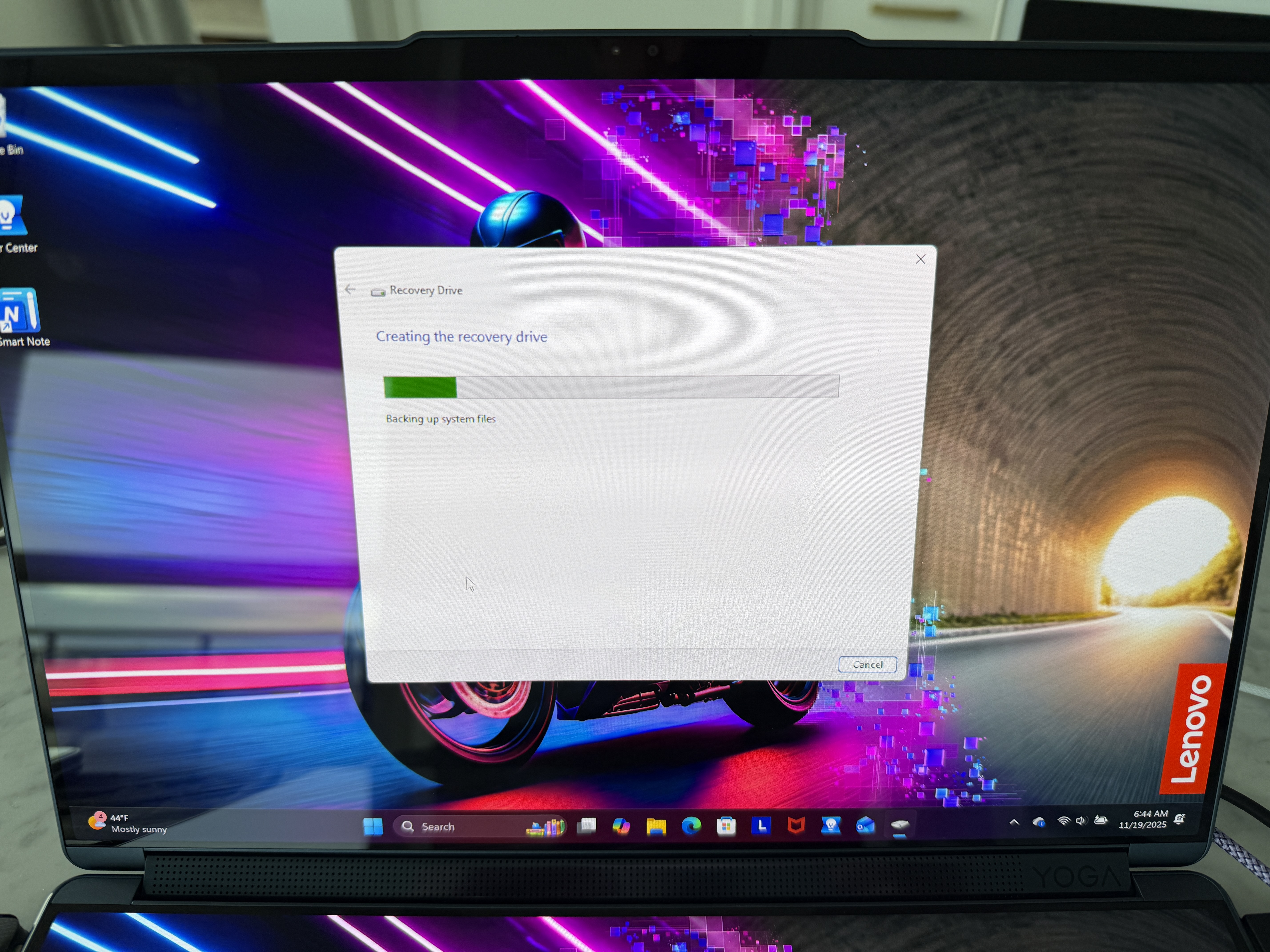
Figure 1: Creating a Recovery Image
BIOS Settings
- I entered the BIOS by pressing F2 while turning on the machine.
- I turned off Secure Boot. I understand Linux can work with it, but it will make things easier in the short term.
- There was no option to set the boot mode to UEFI only, so I skipped this.
- I disabled network boot for added security.
- I then saved and rebooted.
Windows
- The first thing I did was to boot into Windows 11, then I opened an command prompt as an administrator and entered the following to turn off fast boot:
powercfg /hibernate off
- Then I went to search and typed in Disk Management. It suggested I open "Create and format hard disk partitions." so I selected that. I right-clicked the C: drive and selected "shrink volume". I reduced it to about 150 GB for Windows, and left the rest as unallocated space for Linux.
Linux OS
- I decided to install NixOS on this machine, primarily because I can roll back mistakes. I can also use my configuration to set up other machines in the future, which will save me time. I downloaded [[https://nixos.org/download/][NixOS] for Intel and wrote it to a USB drive.
- When the machine booted from my external USB drive, I selected GNOME LTS and it bought me to a Welcome screen. Unfortunately, all of the text was on the top display and that was upside down. It also said the computer does not satisfy the minimum requirements for installing NixOS, but that is only due to the two displays.
- I pressed Ctrl+Option+F1 using my Logitech external keyboard, and it took me to a command prompt:
[nixos@nixos:~]$
- Running lsblk showed me my hard drives. My unallocated space did not appear in the list. No matter, I then ran:
sudo cgdisk /dev/nvme0n1
The free space appeared just after item #3 in the list. The size matched the free space I made on my drive.
- I then did this:
- Use arrow keys to highlight the big Free Space region
- Press n for “new”
- Accept the default start sector
- Accept the default end sector (use all free space)
- Partition type: 8300 (Linux filesystem)
- Name: nixos-root
- Press w to write the partition table, then yes to confirm
- Press q to quit
- I then formatted the new partition with:
sudo mkfs.ext4 /dev/nvme0n1p5
And then mounted it with this:
sudo mount /dev/nvme0n1p5 /mnt
Then I mounted the existing Windows EFI partition:
sudo mkdir -p /mnt/boot/efi
sudo mount /dev/nvme0n1p1 /mnt/boot
And then generated my NixOS config:
sudo nixos-generate-config --root /mnt
- Now I need a network connection, so I first tried to connect to Wi-Fi, but was unsuccessful. So I plugged my Android phone into the computer and turned on USB tethering. Next, I installed NixOS with:
sudo nixos-install
You will be asked to enter a root password. After that, I ran:
sudo reboot
- Now that I'm in NixOS, (login with username: root and the password you previously selected), I started to edit my configuration file:
nano /etc/nixos/configuration.nix
And I added myself as a user (replacing myname with my real name):
users.users.myname = {
  isNormalUser = true;
  extraGroups = [ "wheel" "networkmanager" ];
};
Then you just need to set a password for your username and run:
password myname
sudo nixos-rebuild switch
Fixing the Kernel
- To start enabling hardware correctly on this device, I edited the following file:
sudo nano /etc/nixos/configuration.nix
And then typed in these settings:
  boot.kernelParams = [
  "mem_sleep_default=deep"
  "reboot=pci"
  "apm=power_off"
  "i915.force_probe=7d51"
  "i915.enable_psr=1"
  "i915.enable_fbc=1"
  "i915.enable_dc=3"
  "i915.modeset=1"
  "nomodeset=0"
  "vga=off"
  "video=eDP-1:panel_orientation=upside_down"
];
This failed the first time because I had powered my machine off and back on and forgot to mount my EFI partition. So I did, and then ran the build again.
sudo mount /dev/nvme0n1p5 /mnt
sudo mkdir -p /mnt/boot
sudo mount /dev/nvme0n1p1 /mnt/boot
sudo nixos-enter
nixos-rebuild switch
Unfortunately, at this point, I ran into a number of other errors and it became to difficult to document all of the fixes. I later moved on to installing Pop!OS, but was unsuccessful in getting touch or the pen to work. I had mixed success with the audio, and screen brightness never worked. Later, I tried Fedora Atomic Cosmic, and ran into all of the same issues. None were fixable unless I switched to NixOS and applied some of the patches others have prepared. For anyone else coming along looking for patches, I'd recommend using this repo: https://github.com/blhoward2/yogabook_patches.
